How to Transfer Your eSIM to a New Phone (iPhone & Android 2026)
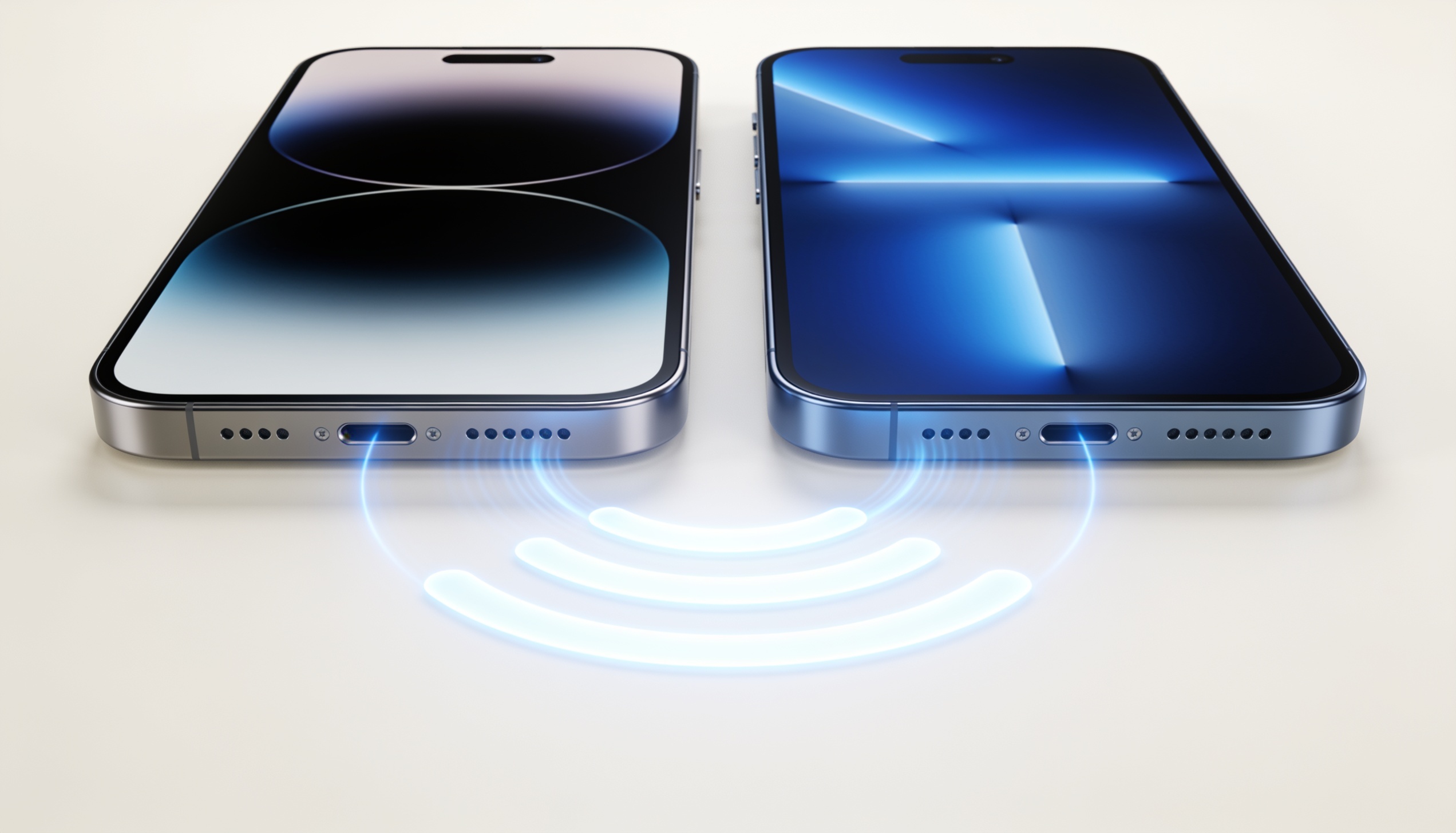
Transferring an eSIM to a new phone is not the same as moving a physical SIM card. An eSIM profile is tied to specific hardware — you can't simply pull it out and push it in somewhere else. The process depends on whether you're moving between iPhones, between Android devices, or from one platform to the other. The good news: it's consistently straightforward once you know which method applies to your situation — and for most travel eSIMs, you can reinstall a fresh copy on your new device without losing your remaining data.
Before You Start: What You'll Need
- Your old phone (turned on, with the eSIM active) and your new phone, both charged
- A stable Wi-Fi connection on both devices
- Your eSIM plan details — specifically the provider's app or the original QR code email
- Confirmation of how many reinstalls your provider allows (most allow 1–3)
Check reinstall limits first. Most travel eSIM plans allow the profile to be deleted and reinstalled a limited number of times — typically one to three. If you've already reinstalled once and use a second reinstall for your new phone, you may have no reinstalls left. Contact your provider before deleting the eSIM from your old device if you're unsure.
How to Transfer eSIM on iPhone (iOS 16 and Later)
Apple introduced eSIM Quick Transfer with iOS 16, which allows direct eSIM transfer between two iPhones — no QR code or carrier involvement needed. This works for your home carrier eSIM and, in many cases, for travel eSIMs as well.
Start iPhone setup on your new device
Power on your new iPhone and begin the setup process. When prompted to set up your phone number, choose "Transfer from iPhone."
Bring your old iPhone close
Hold your old iPhone near the new one. A prompt will appear on the old iPhone asking if you want to transfer your phone number. Confirm.
Complete verification
Your carrier may send a verification code to your old device to confirm the transfer. Enter it when prompted on the new iPhone.
Wait for activation
eSIM activation typically takes a few minutes. The new iPhone will show "Activated" in Settings → Cellular when complete. Your old phone's eSIM will be deactivated automatically.
For travel eSIMs on iPhone: Quick Transfer works for some travel eSIM profiles, but not all. If your travel eSIM doesn't transfer via Quick Transfer, use the manual reinstall method below: delete the profile from your old device and reinstall via QR code or provider app on the new phone.
Manual eSIM transfer on iPhone (without Quick Transfer)
If you're setting up a phone that's already been through initial setup, or Quick Transfer isn't available for your eSIM profile:
Remove the eSIM from your old iPhone
Go to Settings → Cellular → [your eSIM plan] → Remove Cellular Plan. Confirm removal. This frees the profile for reinstallation.
Reinstall on the new iPhone
On your new iPhone, go to Settings → Cellular → Add eSIM. Either scan the original QR code from your provider's email or use the provider's app to generate a new QR code for reinstallation.
Configure data settings
After activation, go to Settings → Cellular and confirm the new eSIM is set as your default data line (or secondary, if you're using it alongside a physical SIM).
How to Transfer eSIM on Android (2026)
Android doesn't have a universal "Quick Transfer" equivalent for eSIMs across all manufacturers and carriers. The standard process is delete-and-reinstall: remove the eSIM profile from your old device, then add it fresh on the new device using your provider's app or the original QR code.
Standard Android method (all manufacturers)
Note your eSIM details before deleting
Open your eSIM provider's app or find the original QR code email. Make sure you can access these on a different device or computer before proceeding — you'll need them to reinstall.
Delete the eSIM from your old Android device
Go to Settings → Connections → SIM Manager (exact path varies by manufacturer). Select the eSIM → tap Remove or Delete. Confirm removal.
Add the eSIM on your new Android device
Go to Settings → Connections → SIM Manager → Add eSIM on your new phone. Scan the QR code from your provider's email, or follow the provider app's in-app reinstall flow.
Set as default data SIM
After activation, go to Settings → Connections → SIM Manager and set the eSIM as your preferred mobile data line (or secondary, if you're using it alongside a physical SIM).
Samsung-specific: Smart Switch and eSIM
Samsung's Smart Switch app transfers app data, settings, and some account information between Samsung devices — but it does not transfer eSIM profiles. eSIM content is specifically excluded from Smart Switch transfers due to carrier security restrictions. Use the standard delete-and-reinstall method above for eSIM on Samsung devices.
What Happens to Your Data When You Transfer?
This is the question most travellers worry about — and the answer is mostly reassuring. When you delete an eSIM profile from your old device and reinstall it on a new one, your remaining data balance is preserved. The eSIM profile carries your plan entitlement, not a fixed block of data stored on the chip. As long as your plan is still within its validity window, the data will be available on the new device after reinstallation.
The key exception: reinstall limits. Most travel eSIM providers allow their profiles to be deleted and reinstalled a limited number of times — typically one, two, or three times. This is a provider policy, not a hardware restriction. If you've used all your reinstalls, you won't be able to add the profile to a new device without contacting the provider for assistance. Check your provider's policy before starting the transfer.
Can't find your original QR code? Check your original email from the eSIM provider — it's almost always there. If you used a provider app, open the app on your old device and look for a "My Plans" or "Manage eSIM" section that may display the QR code or allow reinstallation directly.
Switching from iPhone to Android (or Vice Versa)
Cross-platform eSIM transfers follow the same delete-and-reinstall process. There's no direct transfer method between iPhone and Android — you delete from the old platform and reinstall via QR code or provider app on the new platform. As long as your provider's app supports both iOS and Android (which most travel eSIM providers do), this works smoothly.
One thing to verify: some eSIM profiles are issued in a format that's specific to iOS or Android. This is rare with travel eSIMs (which use standard GSMA-compliant profiles) but more common with carrier-issued eSIMs. If your provider's app doesn't support Android or vice versa, contact their support for a cross-platform reinstall.
Frequently Asked Questions
Can I transfer my eSIM to a new phone?
Yes, but not by removing it like a physical SIM card. On iPhone (iOS 16+), use eSIM Quick Transfer during setup. Otherwise, delete the eSIM profile from your old device and reinstall it on the new one using your provider's app or QR code. Check how many reinstalls your plan allows before starting.
Will I lose my data when I transfer my eSIM?
No — your remaining data balance is preserved when you transfer. The plan entitlement follows the profile, not the hardware. The only risk is if your reinstall limit is exhausted, in which case you'll need to contact your provider.
How many times can I reinstall a travel eSIM?
This varies by provider. Most travel eSIM plans allow one to three reinstallations. Some providers are more flexible and will reset the reinstall count if you contact support. Check your specific provider's terms before deleting the eSIM from your old device.
Does iPhone Quick Transfer work for travel eSIMs?
Sometimes. Quick Transfer was designed primarily for carrier eSIMs, but many travel eSIM profiles can also be transferred using it. If Quick Transfer doesn't include your travel eSIM in the transfer, use the manual reinstall method: delete from your old iPhone and reinstall via QR code on the new one.
Can I use the same eSIM on two phones at once?
No — an eSIM profile can only be active on one device at a time. When you transfer to a new phone and reinstall the profile, it's automatically deactivated on the old device (or must be manually deleted before the new installation can proceed).
What if I deleted my original eSIM QR code email?
Check your email spam folder first — provider emails sometimes end up there. If you genuinely can't find the QR code, contact your eSIM provider's support and explain you're moving to a new device. Most providers can issue a new QR code or allow reinstallation through their app, though you may need to verify your identity or account details.
Getting a new phone before your next trip?
Compare travel eSIM plans for your destination — activate in minutes on your new device.